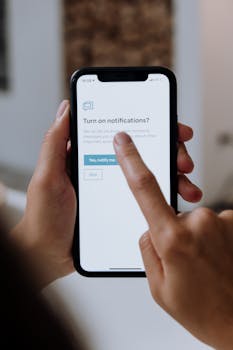
These ads can also slow down your phone or trick you into clicking links you never meant to. With more people turning to their phones for work and entertainment, knowing how to stop phone ads is vital. No one wants constant interruptions or potential security risks.
This guide walks you through smart, practical steps to stop phone ads without hassle. You won’t need to be a tech pro. Whether you’re using Android or iOS, try out each solution and see how quickly your mobile experience improves.
You’ll find clear strategies, easy-to-follow lists, and table comparisons. Let’s get started on making your phone a peaceful, ad-free space once again.
Pinpointing Sources: Where Ads Sneak Into Your Phone
Before you can truly stop phone ads, it’s essential to spot their entry points. Each source gives you a chance to cut off interruptions fast and keep your phone tidy.
Pop-up ads don’t just come from the web; rogue apps, widgets, or even notifications can launch them. Treat this step like a safety check—find what triggers unwanted ads, then act.
Identifying Ad-Spewing Apps
Ad-heavy apps often reveal themselves with unexpected banners or strange pop-ups. If you see new ads after installing something, that app is likely the cause.
Look for apps requesting notification permission or those you installed from outside official stores. They’re prime suspects and can unleash ads at any moment.
Check your recent downloads list. Unusual names, duplicate tools, or utility apps can be guilty parties. Disable or remove them to instantly stop phone ads in their tracks.
When unsure, go through Settings > Apps and review each unfamiliar app. Deleting suspicious programs often ends the worst ad attacks before you dig deeper.
Spotting Browser-Triggered Ads
Browsers are common channels for ads, especially if you visit unfamiliar sites. Closing extra tabs and clearing your browser cache chunks down ad frequency.
Look for unusual redirects or full-screen pop-unders. These indicate a browser hijack. Block notifications from sites that ask—especially if you never pressed “Allow.”
If you see ads every time you open your browser, reset settings or try another trusted app. This instantly filters out ad-heavy extensions or scripts causing havoc.
Teaching a friend how to close tabs and manage permissions is like changing locks on all your doors after a break-in. Make it a habit to check regularly and keep your browser lean.
| Ad Source | Behavior | Interruption Level | Immediate Fix |
|---|---|---|---|
| Downloaded Apps | Push notifications, random banners | High | Uninstall suspicious apps from Settings |
| Browser Pop-ups | Full screen, site redirects | Medium-High | Clear browser data, check notification permissions |
| Widgets/Third-Party Launchers | Ads layered on the home screen | Medium | Disable or uninstall extra launchers/widgets |
| Internal System Ads | Ads inside default phone apps | Low-Medium | Disable ad-related features in system settings |
| Notification Spam | Sudden, persistent notifications with links | High | Revoke app notification permission |
Removing Ad-Heavy Apps and Revoking Permissions
One of the fastest ways to stop phone ads is to delete the main offenders and lock down app permissions. This instantly restores peace and privacy on your phone.
Apps that blast ads often slip in new permissions you didn’t approve. Hunt down and remove these permissions—especially notification, overlay, or installed-from-unknown-source rights.
Steps to Audit and Uninstall Ad-Related Apps
Open Settings and tap on “Apps.” Explore the full app list. Tap on anything you don’t remember adding.
Select “Uninstall” for the most suspicious entries. If they resist, pick “Force Stop” first, then uninstall. Repeat this for all potential offenders to stop phone ads system-wide.
Resist apps with flashy promises or unclear names. Deleting them means fewer surprises and less risk of accidental ad triggers.
If your phone keeps opening uninvited ads, consider wiping recent app updates or doing a full reboot after your uninstall spree to guarantee results.
- Check recent apps for unfamiliar names: Less obvious app names can hide adware. Removing them early is crucial for a clean device and to stop phone ads swiftly.
- Limit notification permissions: Apps shouldn’t bombard you with ads via push notifications. Disabling these permissions cuts the main ad delivery channel for many offenders.
- Remove apps not from official stores: Sideloaded apps are more likely to include ad-serving code. Uninstalling these reduces your risk immediately and stops phone ads proactively.
- Revoke overlay privilege: If apps are allowed to draw over others, popup ads become frequent. Take back this privilege to minimize on-screen distractions right away.
- Force-stop persistent offenders: Some ad-spamming apps won’t uninstall easily. Forcing a stop in Settings helps, then uninstalling ensures you won’t see their ads again.
Regularly reviewing this list each month helps keep your device tidy and less vulnerable to future ad intrusions.
Cleaning Up Hidden Traces
Uninstalling adware isn’t the end—residual files or settings can linger. Head to Storage settings to clear leftover app data or cache.
Clear browser cache and cookies, since ad-related scripts may stick around. This simple clean-up reduces reappearance of old ads dramatically.
- Open Storage > Cached Data and confirm clear: This action deletes old ad files and cookies that might relaunch ads after app removal or browser resets.
- Reboot your phone after each big clean: Some adware loads at startup. A fresh boot clears temporary files and ensures new settings stick, helping to stop phone ads more reliably.
- Check for ad-related system settings: Some custom launchers or themes place ads even without third-party apps. Disable their ad options to guarantee a clutter-free screen.
- Update your phone after cleaning: Firmware updates can patch vulnerabilities adware exploits. Regular updating keeps your defenses strong and reduces system-level ad popups.
- Consider a secondary scan: Use a trusted anti-malware app for one final check. Even after cleaning by hand, a scan adds reassurance that intrusive ads won’t return.
After all these actions, you’ll notice fewer security warnings and a smoother everyday phone experience—less lag, more focus, and no pop-up drama.
Tuning Browsers and Blocking Web Ads
Controlling your browser settings makes a big difference in your ongoing battle to stop phone ads, especially while surfing the web or streaming content.
Adjusting web permissions, adding blockers, and regularly clearing your browser data helps you avoid fresh waves of annoying ads or redirection attacks every session.
Setting Up Built-In Browser Protection
Many browsers ship with ad-blocking features or options to prevent pop-ups. Look for “Site Permissions” or “Ads” settings in your browser and enable these built-in tools.
Activate the “Block Pop-ups” feature in Chrome, Firefox, or Safari on your phone. Also, block site notifications when prompted—it stops recurring permission-based ad interruptions instantly.
Staying on top of these options is like setting traffic lights at a busy intersection: everything flows more smoothly, and unwanted ads rarely get a chance to appear.
Refresh browser preferences regularly. Updates can reset permission status, making it worthwhile to recheck all ad-blocking boxes after each browser upgrade.
Adding Trusted Third-Party Content Blockers
Install a reputable ad-blocker extension from your phone’s browser store. Trusted apps filter out banners, pop-unders, and even video ads automatically, making web use much cleaner.
Choose blockers with high user ratings and regular updates. Avoid unfamiliar names; some fake blockers actually deliver more ads. Read reviews for peace of mind and top performance.
Enable tracker blocking for better privacy alongside ad control. This complementary feature stops phone ads while also cutting data collection from marketing companies, boosting your security too.
If a site refuses to load until you disable your blocker, weigh whether it’s worth visiting. For critical content, allow exceptions, but stay wary of repeated access requests.
Managing Permissions for System and Pre-Installed Apps
Locking down permissions for system apps gives you deeper control—and unexpected ads from pre-installed software are stopped before they ever appear again.
Reviewing app privileges is a key habit in your wider effort to stop phone ads, particularly as some phone brands bundle promotional notifications by default.
Disabling Promotional System Notifications
Head to Settings > Notifications and search for system apps that allow promotions. Uncheck all toggles labeled “Promotions,” “Offers,” or “Suggested content.”
Some manufacturers grant special permissions to their own apps to serve ads. Removing these cuts down on home-screen banners and pop-ups that appear out of nowhere.
Disabling these options cleans up your notification shade, leaving just important messages—no more ad clutter from the manufacturer or default launcher tools.
After changes, monitor your phone for a few days to ensure ad notifications don’t return, especially after system updates or software patches.
Restricting Overlay and Accessibility Access
Go to Settings > Apps > Special Access and inspect overlay permissions. Apps with overlay privileges draw over other apps, creating new ad opportunities.
Disable overlay and accessibility permissions for anything you don’t recognize or fully trust. Without these, most rogue ad generators lose their main delivery method and stop phone ads for good.
If you notice persistent on-screen banners or buttons, check which app is active in your overlay list. Removing its privileges restores your ad-free experience immediately, a huge relief during daily tasks.
Regularly review this menu—some apps request access after updates, so staying attentive prevents new ad issues later on.
Strengthening Your Phone With Ad-Blocking Tools
Bringing in specialized ad-blocking tools supercharges your ability to stop phone ads, especially those that sneak through browser blockers or system tweaks alone.
Choosing a reliable tool means fewer interruptions and smoother navigation through your favorite websites and apps, without unwanted commercial distractions.
Evaluating Popular Ad Blockers
Look for widely recognized ad-blockers, checking for regular security updates and user reviews. Install only from official app stores to protect your device from disguised adware.
Set up the chosen blocker as instructed—some run automatically, while others need manual activation for each browser or app. Test changes by revisiting known ad-heavy sites to confirm success.
If you use multiple browsers, confirm that your blocker covers all, or install parallel plugins. This guarantees the consistent blocking of unwanted ads across your phone.
If one blocker lets ads slip through, try pairing it with another reputable tool, but avoid overlapping too many blockers, as this sometimes slows your device without extra benefit.
Exploring Network-Level Blocking Solutions
Some advanced users turn to device-wide blocking apps. These filter ads before they even load, working for apps and browsers alike and providing a complete stop phone ads solution.
Set up these apps carefully, checking network settings and granting permissions where required. Monitor performance: high-quality solutions shouldn’t noticeably reduce your connection speed.
Schedule regular app updates. Ad networks evolve, so keeping your blocker in sync is vital. If ads reappear, reconfigure or update your blocker settings immediately for continued results.
Combine these methods with strong app hygiene for long-term protection. Multiple defenses lower your risk of new ad intrusions popping up unexpectedly over time.
Stopping Ads via Safe Browsing and Conscious Usage Habits
Strengthening habits around browsing, downloading, and app permissions creates a sustainable routine that effortlessly supports your stop phone ads mission day-to-day.
Good practices also minimize your risk of future outbreaks, serving as preventative medicine for both ad attacks and broader security risks.
Crafting Better Browsing Habits
Bookmark trusted websites and avoid clicking on unknown links. Say “No” to permissions unless a site or app genuinely needs them; this keeps ad scripts at bay.
Use the “Do Not Track” setting in your browser. This limits targeted ads and helps you spot sites that try to bypass security. Refresh bookmarks often and clear old cookies.
Whenever prompted by a pop-up, read first—don’t accept things blindly. If unsure, swipe away or close the tab to minimize ad risks, especially on unfamiliar sites.
Keep your apps updated and log out of sites when not needed. This reduces persistent ad tracking, making it harder for marketers or ad networks to glue ads to your sessions.
Maintaining Download Discipline
Download apps only from trusted sources like the Google Play Store or Apple App Store. Check for recent updates and high user ratings before installing anything new to stop phone ads.
If an app requests extra permissions, pause and read why. Refuse install if permissions don’t match the service. Curating your app collection keeps adware out and performance high.
After a new install, monitor for surprise ads. If they appear, act quickly—disable notifications, revoke unnecessary permissions, and consider an uninstall instead of waiting for ads to get worse.
Keep a backup of your favorite ad-free tools, so if an app update introduces ads, you can revert to an older, cleaner version and maintain your uninterrupted use.
Conclusion
Targeted actions deliver fast results, helping you finally stop phone ads for good. Small changes, like careful app selection and browser tweaks, combine to make your phone a more peaceful space.
Locking down permissions, auditing apps, and updating software work together to block new ad attacks before they interrupt your daily routine. These habits also boost your privacy and speed.
Use this guide anytime ads start creeping back in. Return for checklists or step-by-step reminders as needed. Revisit every few months to keep your phone in top shape.
With every step, you regain control. Free yourself from distractions by continuing to stop phone ads directly, and enjoy a cleaner, safer, more enjoyable mobile experience every single day.